Semantics

Print Previous page Top page Next page

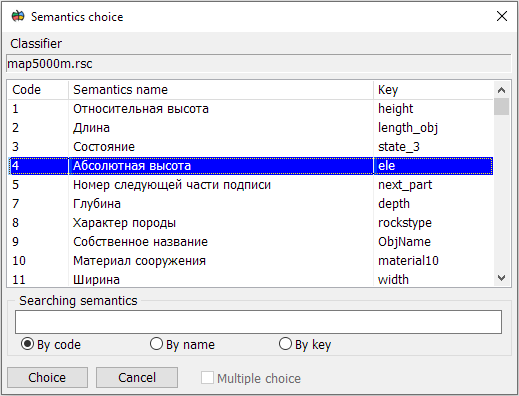
On the Semantics tab, you can select objects based on a combination of conditions applied to the values of their semantic characteristics. For example, to select objects whose absolute height value is greater than 100 meters, you need to form an expression like: absolute height > 100.


clip0136


Modes of Operation


clip0093 Add

Adds a condition based on a semantic value. The selected semantic is added to the current group condition. Multiple selection of semantic characteristics is available.

clip0094

clip0095 Add Group

Adds a group condition for semantics

clip0096 Delete

Deletes the selected semantic condition or group condition

clip0097 Copy

Copies the selected semantic condition or group condition

clip0098 Undo

Restores the original semantic conditions

clip0099 Reset

Resets all semantic conditions

Set General Condition

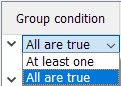
Sets a general condition for semantic groups:

"All (AND)" – All group conditions are considered.

"At Least One (OR)" – At least one group condition is considered.


Modes of Working with the Semantic Condition Tree


Edit Group Condition

Double-click the left mouse button in the "Group Condition" field.

clip0100

Edit Semantic

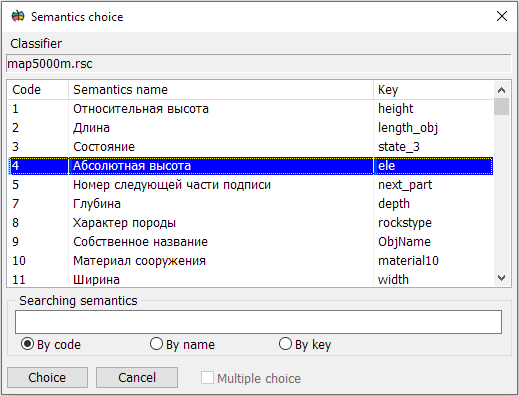
Double-click the left mouse button in the "Semantic Name" field.

clip0101

Edit Condition

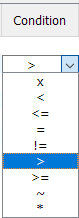
Double-click the left mouse button in the "Condition" field.

clip0102

!=

The semantic characteristic value is not equal to the specified one

*

Any value for this characteristic is allowed

<

The semantic characteristic value is less than the specified one

<=

The semantic characteristic value is less than or equal to the specified one

=

The semantic characteristic value is equal to the specified one

>

The semantic characteristic value is greater than the specified one

>=

The semantic characteristic value is greater than or equal to the specified one

х

Any value for this characteristic is forbidden

~

Partial match. For each line in the list, the search for a partial match is performed for every substring separated by a space, period, comma, semicolon, or tab. If a substring contains only digits, the same substring is searched for without other digits at its edges (for the substring "21", the substring "121" or "213" will not be found, but "21.0" is acceptable). This allows, for example, finding an address by the first letters of the street name and the exact house number. For example, for the string "Nog Rog 117", objects with the semantics "Noginsk, ul. Rogozhskaya d.117", "Noginsk Rogozhskaya 117", and similar will be found.

Edit Value

Double-click the left mouse button in the "Value" field. Activates the field for entering values.

For a semantic with a value selected from a classifier, a list is generated. The first value from this list is set by default.

For a quick search, enter a value, and the list will be filtered by any case-insensitive partial substring match.

clip0103

Drag&Drop Mechanism

Dragging one or several semantic conditions is done by selecting the required conditions from different group conditions in the "Group Condition" field.