Formulas |


|
|
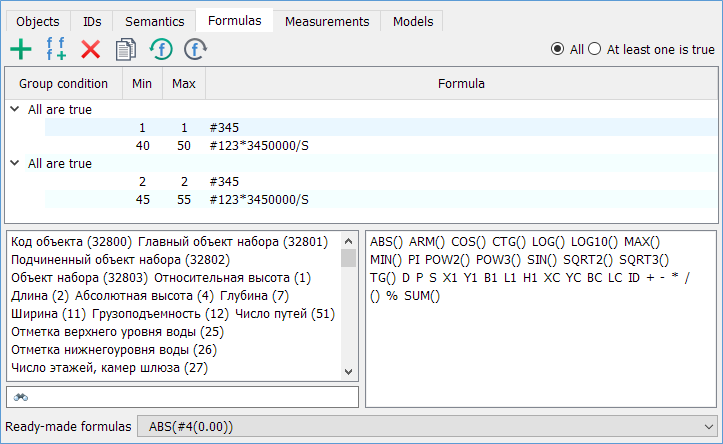
On the Formulas tab, you can select objects based on a list of mathematical formulas and a value range that the calculation result must match. The selection of objects can be performed based on whether the calculations match the specified value ranges for one of the formulas or for all of them at once.
Режимы работы
Modes of Working with the Formula Condition Tree
For example, if there is a semantic containing the amount of nitrate in tons applied to a given land parcel, and you need to select parcels where the amount of nitrogen per hectare is between 40 and 50 kg. Let's assume semantic 123 contains the amount of nitrate applied to the parcel in tons. Since the parcel area (S) is calculated in square meters, and ammonium nitrate contains 34.5% nitrogen, the formula will look like: "#123*1000*0.345/(S/10000)" or simplified "#123*3450000/S". The boundary values should be set to 40 and 50. To inversely select parcels where the fertilizer dose is less than 40 or greater than 50, you need to swap the boundary values.
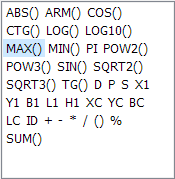
Supported Operations and Properties Mathematical operations such as ABS, SIN, COS, TAN, COT, MIN, MAX, POW2, POW3, SQRT, CBRT, LOG, LOG10, and others are supported. Calculations can use the object's area, perimeter, coordinates of the first point, coordinates of the contour's center, object number, and other properties.
To combine mathematical expressions and logical conditions, it is possible to group mathematical formulas.
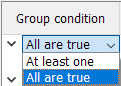
For example, if there is a semantic with the amount of nitrate in tons applied to a given parcel and a semantic with the soil fertility class, you can select parcels where the amount of nitrogen per hectare is optimal. For the first fertility class, create the first formula group: "#345" with boundary values 1 and 1 (to select only class 1) and "#123*3450000/S" with boundary values 40 and 50. For the second class, set the boundary values for the first formula to 2 and 2, and for the second formula to 45 and 55, and so on. Inside each group, select the logical condition "AND" – both formulas must satisfy their boundary conditions. Between the groups, select the logical condition "OR" – conditions in at least one group must be met during the calculation. When you click the "Select" button, all parcels where the nitrogen dose is optimal will be highlighted. The created conditions can be saved in search condition templates under specified names and applied as needed. |