Condition-Based territory search |


|
|
Zones are assigned based on sets of objects. A new object set is created using the "Filter objects by classifier" dialog, which opens by clicking the "Add object set" button. An existing object set can be added using the "Add object set from list" option. The object lists themselves are pre-configured using the "Object Lists" dialog.
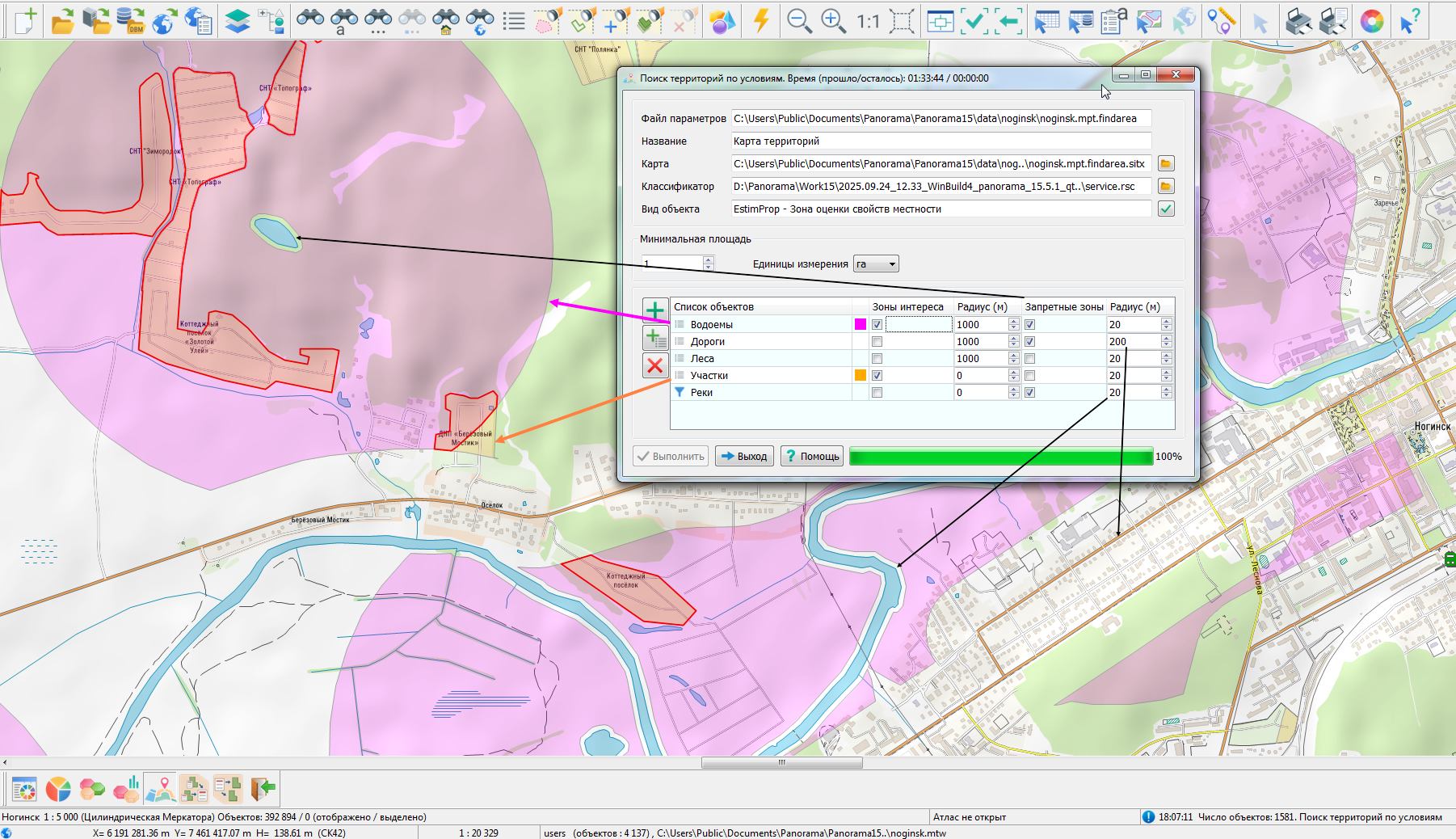
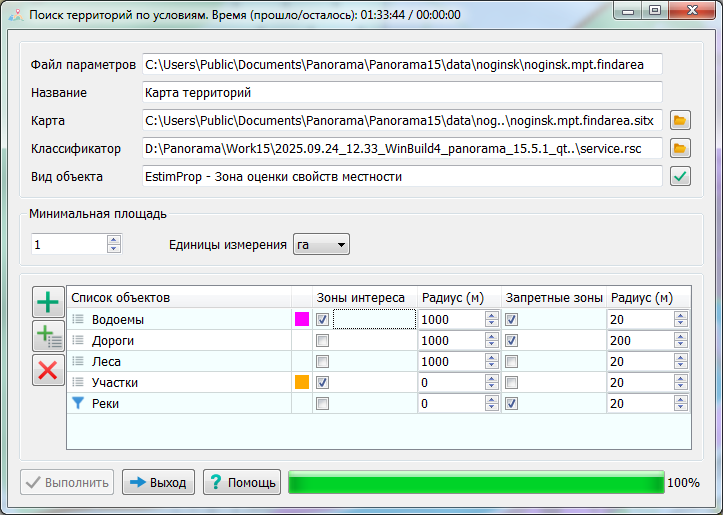
Creating an object The figure shows the configuration of zone parameters.
For the "Water Bodies" list, the Zones of Interest category is enabled with a radius of 1000 meters and the Restricted Zones category with a radius of 20 meters. This means the sought-after territory must be located no further than 1000 meters and no closer than 20 meters from water bodies. In this case, the restricted zone will be subtracted from the zones of interest. The result will be saved as semi-transparent polygonal objects of the "Terrain Property Evaluation Zone" type, with the relaxed lilac color assigned to the "Water Bodies" list. For the "Parcels" list, the Zones of Interest category is enabled with a radius of 0 meters. This means the sought-after territory must belong to (i.e., be within) the parcels. The result will be saved as semi-transparent polygonal objects of the "Terrain Property Evaluation Zone" type, with the relaxed orange color assigned to the "Parcels" list. For the "Roads" list, the Restricted Zones category is enabled with a radius of 200 meters. This means the sought-after territory must be no closer than 200 meters from roads. The restricted zones built around roads will be subtracted from the zones derived from water bodies and parcels.
The areas where the Zones of Interest for "Water Bodies" and "Parcels" intersect are saved as red closed contours – these zones meet all the specified conditions. The areas clipped by the radii of the restricted zones are indicated by black arrows.
Parameters File The execution parameters are saved in an XML file with the extension .findarea, stored in the map's folder. For the original map c:\Users\Public\Documents\Panorama\Panorama15\data\noginsk\noginsk.mpt, the parameters file ..\noginsk\noginsk.mpt.findarea is created.
Example File:
xml <?xml version="1.0" encoding="UTF-8"?> <findarea> <theme name="Territory Map" rscname="service" key="EstimProp" units="0" minsquare="100"> <set ident="1" interest="1" radius="1000" ban="0" banradius="0"> <model> name="Lakes"...</model> </set> <set ident="2" interest="0" radius="1000" ban="1" banradius="200"/> <model> name="Roads"...</model> </set> <set ident="3" interest="1" radius="2000" ban="1" banradius="100"/> <model> name="Plots"...</model> </set> </theme> </findarea>
XML Node Structure:
The search result is saved to the file ..\noginsk\noginsk.mpt.findarea.sitx. |

 . Adding an object set can also be done using
  . The object lists themselves