Delete objects inside objects of another map |


|
|
This script is designed to automatically find and delete objects on one vector map that are completely contained within the contours of objects on another vector map and share the same keys. Deleted objects may optionally be moved to an archive map. Two open vector maps are required in a single document. One map serves as the "container" (the analyzed map, containing outer contours), and the other serves as the editable map (the objects of which are checked for containment). Objects on the editable map that lie completely inside a container object with the same key are considered "internal" and are subject to deletion.
Prerequisites • Both vector maps must be open in the current document. • Both maps must be created using the same classifier. • The editable map must have write permissions (i.e., must not be write‑protected).
Models (Search Criteria) The script uses a model defined in an XML file with the .vclx extension. This model specifies which objects on each map participate in the analysis. When the dialog opens, the script automatically suggests the default model file path, which is searched for in the classifier folder (e.g., map5000m.rscz.vclx). If you do not have a ready‑made model, you can create one using the Find Objects dialog, which can be invoked by clicking the Add button. For more details on creating models, please refer to the relevant section of the help documentation.
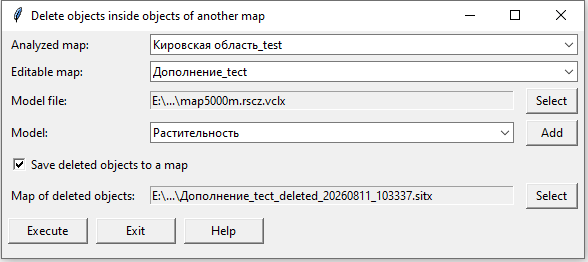
Dialog Interface After launching the script, a window appears with the following elements:
To start working in the dialog: 1. Open a document in GIS "Panorama" containing at least two vector maps (e.g., Map1.sitx and Map2.sitx). 2. In the Scripts tab of the Application Launch dialog, find and run the script Delete objects inside objects of another map. 3. In the dialog that appears: • In the Analyzed map drop-down list, select the map whose objects will be used as the search criteria. • In the Editable map drop-down list, select the map from which objects will be deleted. • In the Model file field, specify the path to the model file containing object selection conditions. • In the Model drop-down list, select the specific model (if there are several). • If necessary, check the Save deleted objects to map box and specify the corresponding map. 4. Click the Execute button.
The script: • Loads the models and finds all objects on both maps that satisfy the conditions. • For each object on the editable map, checks whether it lies entirely inside one of the contours of the container objects. • If the condition is met, the object is copied to a new archive map and deleted from the original. • A progress indicator is displayed on the screen.
5. Upon completion, a window will appear with a message about the number of moved objects.
Notes and limitations: • The script checks for full containment of the object within the contour: the object must be located strictly inside, without touching boundaries or intersecting with the outer contour. • If the container object has multiple outer contours, the object being checked must lie entirely inside at least one contour. • Objects with degenerate metrics (zero number of points) are ignored during the check. • The script requires that the py_mapapi14 modules (standard supply of GIS "Panorama") and Python 3.5 or newer are installed on the system. • If the editable map is write-protected, the script will issue a warning and will not start the operation. • If errors occur (e.g., failed to create an archive map), the script displays a message to the user and terminates without modifying the original data. • The script does not modify container objects and does not affect other maps in the document. • The script does not work with graphic objects. |