Raster List |


|
|
It is intended for operations with raster maps (and also with rasters of qualities, with rasters of a visibility zone), included in a structure of an digital vector map (document). Here it is possible to add a raster map into the document, to close it from the document (to not confuse with «to delete from the disk»), to view and to change parameters of a raster map, and also to control for mapping(displaying,representation) of a raster map in a structure of the document. All of set-up realized with the help of a Raster list bookmark are stored for the subsequent sessions a Panorama.
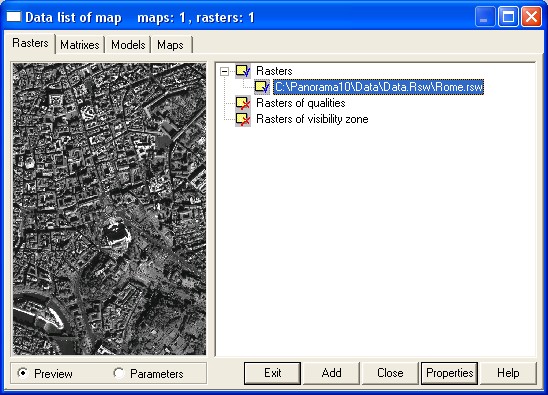
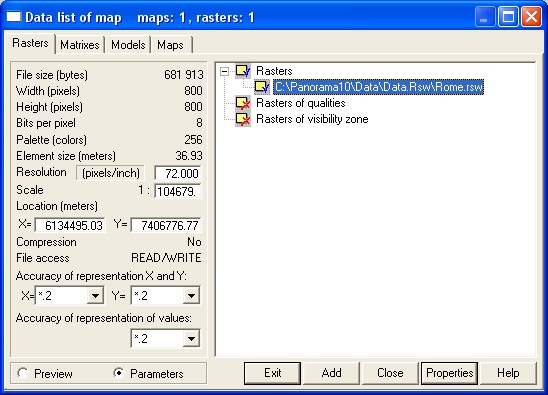
All manipulations in a Raster list bookmark are effected with a current raster, the line with which filename is highlighted. In the left half of bookmark Raster list the part of the current raster image is exhibited or its characteristics are enumerated(listed). The switching from the image of a current raster map to its characteristics is carried out by means of radiobuttons Preview and Parameters.
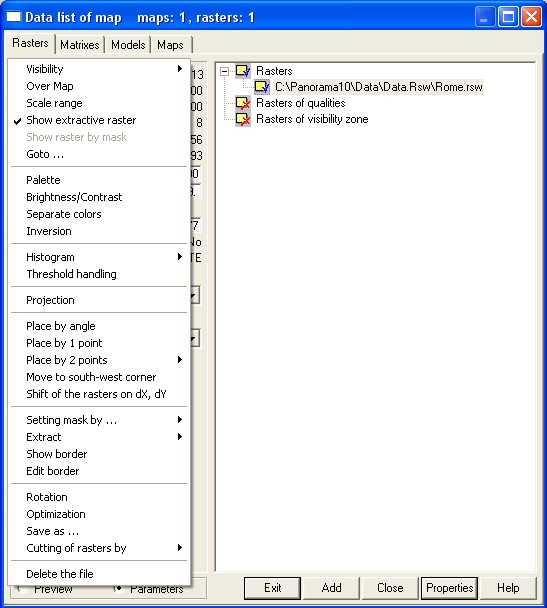
Add button serves for addition the raster map (*.RST, *.RSW) into the document. The group choice of added files is realized (implemented). At addition there is a possibility of converting the data from the other formats (PCX, BMP, TIFF and others). Look Loading the graphics format files and Loading of a raster map from JPEG format file. Close button serves for closing the current raster map from the document. (Is doubled by the key Delete). Properties button makes active the pop-up menu, with which help the different modes of operation with a current raster map are started. The menu will be actuated also at right mouse button click, when the cursor is on a Raster list bookmark.
For change some general characteristics of raster group actuate the pop-up menu, having selected in a tree one of nodes - Rasters, Rasters of qualities, Rasters of a visibility zone. Exit button is intended for closing the dialogue. Preview and Parameters radiobuttons allow to choose between the image of a current raster or its characteristics displayed in the left half of a Raster list bookmark.
Modes on operation with a current raster map: Conditions of a raster mapping: Show extracted portion of raster Goto south-west corner of raster Channels of multispectral image
Functions of editing the raster map graphic palette: Histogram area of the raster image area Binarization (threshold handling) of a raster map
Functions of a raster repositioning concerning a digital vector map: Move raster to south-west corner Place raster by 2 points with scaling Place raster by 2 points with disproportionate scaling Place raster by 2 points with rotation and scaling Horizontal alignment of raster Shift of the rasters on dX, dY
Functions of editing of raster border: Moving vertex of raster border Addition of vertex into raster border Deleting border vertex of raster
The information on parametres of a projection and coordinate system of a raster:
Servise functions Cutting of rasters by selected area Cutting raster map under the nomenclatures Raster cutting by selected objects
The change a resolution, a scale, a binding of a raster is possible in the window of the raster image parameters at the actual Parameters radiobutton. If some rasters form the structure of a digital vector map, on the screen they are displayed in sequence of the list, introduced by the tree in the right half of Raster list bookmark. For change the sequence of display the rasters added into the document, in the list the mechanism DRAG&DROP is realized. The mechanism of substitution the raster image by its diminished copy is applied to increase the speed of display the raster. An icon with a blue check mark |
 in the file name of a raster map indicates that the raster is displayed in the document. The icon with a red cross
 in the file name of the raster map indicates that the display of the raster is off in the document.