Semantic |


|
|
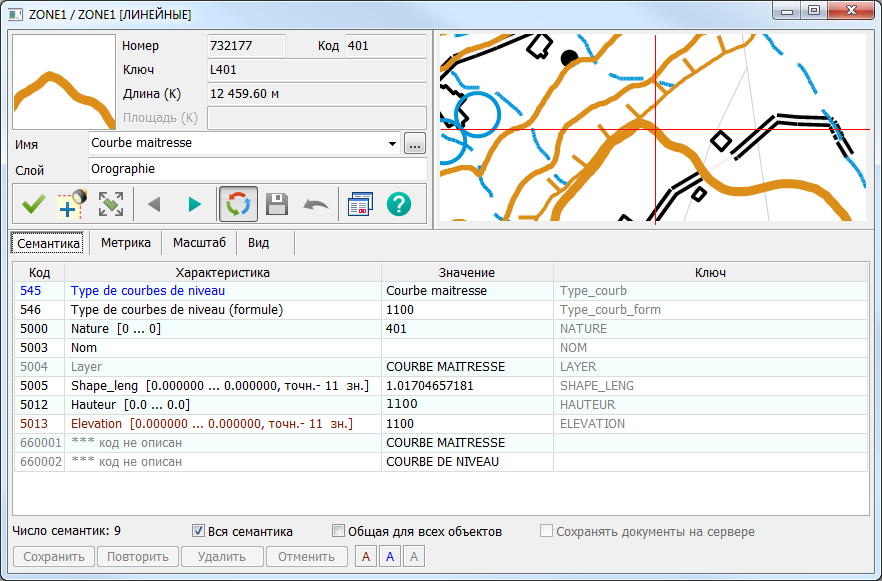
The Semantics tab is designed for viewing and editing the semantic characteristics (attributes) of an object. The tab contains a list of the object's semantics.
Semantics in the table are displayed in different colors: Black – possible semantics. Burgundy – mandatory semantics. Blue – semantics affecting the display style. Grey – characteristics not specified for this type of object (inactive semantics). A non-editable semantic is marked with a lock icon
Typically, the list of semantics is displayed in the order the semantic records are stored for the object. If necessary, the list can be sorted in: Ascending order by code or characteristic value. Alphabetical order by characteristic name or key. The order of characteristics as defined in the classifier editor for this type of object (Classifier).
The sorting method is selected from the context menu, which opens with a right-click (RMB) on the semantics list.
The context menu contains: Open Document in a Separate Window
By default, the table only shows semantics that contain values. To add a semantic not present in the table, the All Semantics checkbox must be enabled. In this case, the list will contain all semantics defined for this type of object in the classifier. A missing semantic is added by left-clicking (LMB) in an empty cell. To add semantics common to all objects, the Common to All Objects checkbox must be enabled.
When the Save Documents on Server checkbox is enabled, files selected for a semantic of the File type are automatically saved on the server of the map opened using GIS Server. This checkbox becomes available when the open map is editable and a folder for storing documents has been selected for the map. The document storage folder (Document Storage) is selected when configuring the map's access parameters using the GIS Administrator program. |
 in the