Arbitrary configuration for line object |


|
|
If the Tracing option is not enabled in the map editor properties, moving the cursor while holding down the left mouse button does not create new points.
If Tracing is enabled, new points will be created during cursor movement while the left mouse button is held down, with a step equal to the Tolerance threshold value set in the map editor properties.
During object creation, a dialog for entering the segment length is available at the bottom of the map window.
When the Specify area and length option is enabled, the length of the segment is interpreted as a distance on the ground. Object saving is made at the moment of completion of executed operation. At the moment of activation of a mode an additional panel will appear (if the option Subsidiary panels in properties of the map editor is switched on), on which in the form of pictograms auxiliary modes are duplicated which can be made active during creation of object, as well by a choice of corresponding item of the menu emerging on pressing of the right mouse button or on pressing the corresponding «hot» key of the keyboard.
All buttons of the subsidiary panel conditionally can be divided onto three groups: 1. Switching on, switching off and indication of condition: Mode of capture of «another's» vertices (take vertex) («K») Mode of capture of «another's» lines (take line) («J») Mode of creation of reply vertex («G») Mode of a horizontal line («H»)
2. Activation of process: Input of coordinates of points in the coordinates form («Insert») Creation and editing of map object's metrics Copy of a vertex of selected object («I») Copy of a part of selected object («P») Changing direction of a digitizing (revert) («D») Creation of the constrained subobject («Y»)
3. Change of parameters: Zoom out area of capture («-»)
Besides, at creation of polygon object of an arbitrary configuration the subsidiary modes, which have been not placed on the subsidiary panel are accessible: Close a contour of object (close line) («L») Memorize cursor position on a map («M») Go to the previous point («X»)
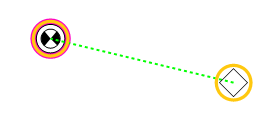
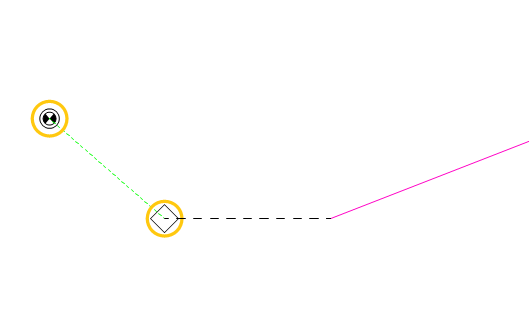
If adjacent objects are assigned in the classifier editor for the created object, the first point of the object can only be created by snapping to the object designated in the classifier as the start point. Furthermore, the object will not be saved after creation if its end point is not snapped to the object assigned in the list of objects for the end point. At the beginning of creating a new object that has assigned start point objects, the cursor, when moved, is marked with a yellow circle and automatically snaps to the nearest eligible start object.
When the left mouse button is pressed, the snap point is automatically added to the object, and then regular interactive object creation continues. During this process, automatic snapping will now target objects assigned in the list for the end point.
Upon completing the operation, the snap point will be automatically added to the object. If start or end objects are assigned for the object but are absent from the map or located too far from the cursor, the cursor is highlighted in red, and no action will be performed when the left mouse button is clicked.
|
 Points of a linear object with an arbitrary configuration are entered upon releasing the left mouse button or pressing the