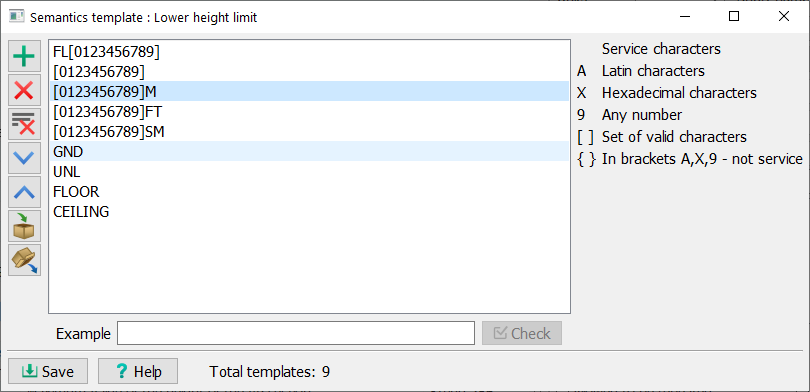
Semantics templates |


|
|
For the automatic validation of input values for symbolic semantics (strings), value templates must be assigned. Multiple templates can be assigned to one semantic characteristic; these templates are checked sequentially until a match with the semantic value is found.
A template can be defined either as: a set of allowed characters within square brackets, which matches a string of any length containing only those characters. Or as a string pattern of a fixed length, containing literal and special characters in specific positions.
The set of allowed characters can be specified, for example, as: [0123456789-+.e]. During the validation of the semantic value, the brackets themselves are ignored. A string pattern with special characters can be defined like this: +7(999)999-99-99.
The following special characters are used: A - only Latin letters (A…Z, a…z) are allowed in this position. X - characters for a hexadecimal number (0…9, A…F, a…f). 9 - digits from 0 to 9.
Any other characters in the string pattern are checked for an exact match in the specified position.
Template Examples:
For a part of the template string enclosed in curly braces {}, the characters A, X, and 9 are checked as literal characters for an exact match, not as special characters. For example, with the pattern {X}, the semantic value must contain the literal character X. A combined template can contain a fixed number of literal or special characters at the beginning of the string, followed by a variable number of characters from a specified set, and a fixed number of literal or special characters at the end of the string.
Examples of Combined Templates:
The user works with a selected template in the list. Editing is performed directly in the current row. • To add a template, press the "+" button and type the required template in the new row. • To delete a template, use the "-" button. • To delete all templates in the list, press the "3" button. • Use the "4" and "5" buttons to navigate through the list of templates. • To copy a template to the clipboard, press the "6" button. • To paste a template from the clipboard, press the "7" button.
To apply changes to the classifier, press the Save button. |